Did you know there is hidden data in your digital pictures? Well, there
is, and that data might be a security risk to you. Think back at all of
those pictures you're in and are connected with. I'm sure some of those
you'd like to distance yourself from. And surely you wouldn't mind
checking out the metadata in a few of those images. In this article,
we'll be going over how to do just that.
Metadata is simply data about data, or in our context, data about content. While the word has far reaching definitions, we will focus on how it applies to digital photos. Normally, this would contain information describing the type of image, when the image was created, and other details such as contrast, color and context. Basic stuff.
Sometimes you get more than that though. Sometimes you get names, dates, times of creation, and other identifying items. Some cameras even let you add your name in the setup, which goes into the metadata. And let's not forget about location. Geotagging is when actual location info is stored in the image. This is a growing trend, since more and more mobile phones are equipped with GPS. Using the techniques below, you'll be able to pull this GPS data and determine just where the picture was taken.
Let's take a look at a personal favorite program of mine, exiftool.
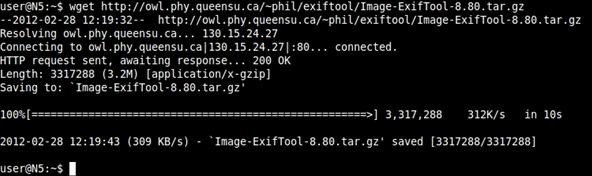
$ wget http://owl.phy.queensu.ca/~phil/exiftool/Image-ExifTool-8.80.tar.gz
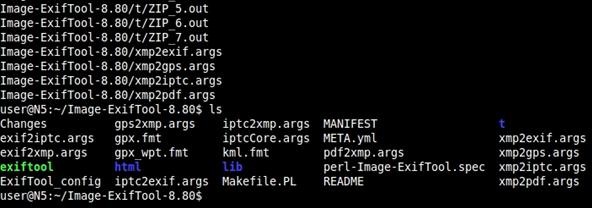
$ tar zxvf Image-ExifTool-8.80.tar.gz; cd Image-ExifTool-8.80/
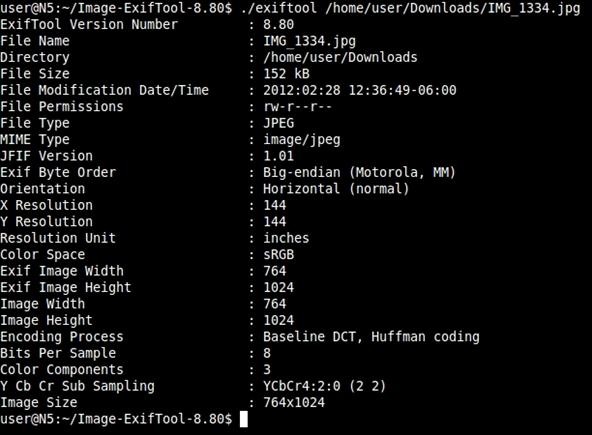
$ ./exiftool [path and filename]
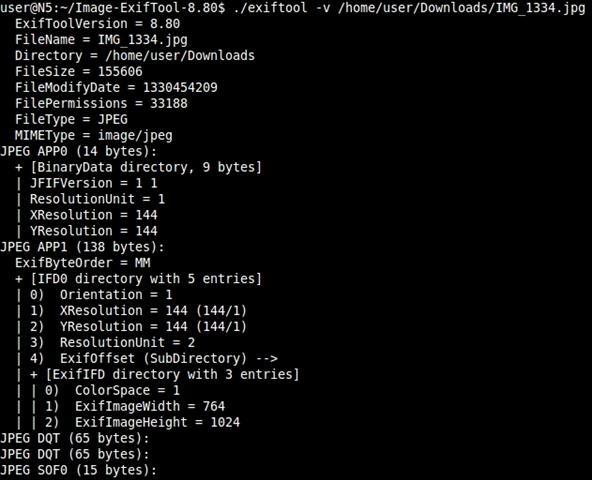
You can also use option flags to produce different output. Let's use the verbose flag of '-v':
$ ./exiftool -v [path and filename]
watch video for demo .
What Is Metadata?
Metadata is nothing new, but with camera phones and other mobile devices becoming the standard for personal photography, new avenues open up for gaining knowledge on your target.
Metadata is simply data about data, or in our context, data about content. While the word has far reaching definitions, we will focus on how it applies to digital photos. Normally, this would contain information describing the type of image, when the image was created, and other details such as contrast, color and context. Basic stuff.
Sometimes you get more than that though. Sometimes you get names, dates, times of creation, and other identifying items. Some cameras even let you add your name in the setup, which goes into the metadata. And let's not forget about location. Geotagging is when actual location info is stored in the image. This is a growing trend, since more and more mobile phones are equipped with GPS. Using the techniques below, you'll be able to pull this GPS data and determine just where the picture was taken.
Let's take a look at a personal favorite program of mine, exiftool.
Step 1 Obtaining Exiftool
Use wget to make the downloading process simple. Wget is a great and powerful tool and usually beats downloads through your browser in speed and reliability. Just type:$ wget http://owl.phy.queensu.ca/~phil/exiftool/Image-ExifTool-8.80.tar.gz
Step 2 Extract and Run
Follow that up by expanding the tarball and moving into the directory with:$ tar zxvf Image-ExifTool-8.80.tar.gz; cd Image-ExifTool-8.80/
Step 3 Profit!
Let's take a look at the metadata of a picture my dear old mother sent to me this morning. For my own protection, this will not include any personal info, but it will show you the general output and commands to use.$ ./exiftool [path and filename]
You can also use option flags to produce different output. Let's use the verbose flag of '-v':
$ ./exiftool -v [path and filename]
watch video for demo .
Comments
Post a Comment